
Human resources
ZKTeco + Hikvision HR Suite
Run both device vendors in the same Odoo database with a shared attendance workflow, payroll engine, and dashboard.
Two device vendorsOne databaseShared payrollExplore the module Get support
MODULE DETAILS
Odoo version 19
License OPL-1
Module price USD 159.99
Release 19.0.1.2.3


ODOO 20 FEST OFFER · SEPTEMBER 2026 · LIMITED OFFER
Waiting for the Odoo 20 release? Buy the Odoo 19 module now. Purchase during our limited September 2026 offer and get the same module for Odoo 20 free when Odoo 20 is released. Includes 15 days of support for the Odoo 20 module.
Send your invoice to WhatsApp +880 1810-025181 or rafit@dotbdsolutions.com. Grab now.
INCLUDED WITH THE ODOO 20 OFFERBETA APK ON REQUESTMOBILE APP · BETA
Kormi HR mobile app for your own Odoo
Every download of this module includes Kormi HR — Mobile Backend, the Odoo side of our Kormi HR app. Employees and managers get GPS and geofenced check-in, offline punches, time-off approvals and statistics, live attendance and device tools on their phone, connected only to your Odoo server.

- Android APK on request: the Kormi HR Android app is in beta. The APK file is provided upon request for beta use; the app is closed source and its source code is not provided. It will be published on Google Play.
- Portal staff, no paid seats: unlicensed employees check in and request time off through a Mobile Access Grant that HR controls.
- Works with your devices: ZKTeco and Hikvision attendance, dashboards and device actions appear in the app automatically.
APP FEATURES
- GPS, geofenced and offline check-in / check-out
- Live “working today” board and check-in map
- Attendance dashboard, monthly grid and reports
- Time-off requests, balances and one-tap approvals
- Time-off statistics: KPIs, filters, group by and employee ranking
- Notifications for requests, decisions and holidays
- Recruitment: applications, CVs and stages
- ZKTeco and Hikvision device status and actions
- Punch source on every attendance: ZKTeco or Hikvision device, app, browser or automatic check-out
- Biometric login, app lock and two-factor authentication
HOW TO USE
- Install this module — Kormi HR — Mobile Backend is installed with it.
- In Odoo, open Kormi HR › Configuration › Settings: enable mobile check-in and add geofence sites if needed.
- For portal staff, create a Mobile Access Grant (employee, role and scope).
- Request the Kormi HR Android APK (beta) from us by WhatsApp or e-mail below, then install it on the phone.
- Open the app, enter your Odoo address and database, and sign in with your Odoo login.

Working today, live

GPS map and geofences

Approve or refuse time off

Attendance dashboard

Attendance review

ZKTeco and Hikvision devices
Coming soon on Google Play. Until then, request the Android APK (beta use): WhatsApp +880 1810-025181 or rafit@dotbdsolutions.com.
ON THIS PAGE
OverviewCore FeaturesQuick Setup GuideFrequently Asked QuestionsWhat Makes Us The Best ChoiceSupport
Overview
Both device vendors. One database. One payroll engine.
ZKTeco (pyzk + ADMS) • Hikvision (ISAPI + Event Push) • One Odoo databaseRun ZKTeco and Hikvision terminals side by side — no second database, no second payroll run. +
+
 ODOO VERSION 19.0LICENSE OPL-1PLATFORMS Odoo.sh / On PremiseSUPPORT 15 Days IncludedDEPENDENCIES hr_attendance, hr_holidays, dotbd_kormi_hr (Kormi HR)
What Makes Us The Best Choice
Trusted by businesses across the globe for reliable, enterprise-grade biometric HR automation.
15+Years in ERP32+Countries Supported✓Official Odoo Partner100%ZKTeco & Hikvision Compatible
See It In Action
Real hardware, both vendors — a punch on the terminal landing in Odoo HR Attendance

ZKTeco terminal
Direct (pyzk) and Cloud (ADMS) modes

Hikvision terminal
Direct (ISAPI) and Event Push modes
Both recordings are our own test hardware — the same devices every claim on this page was verified against
Transform Your Attendance Management
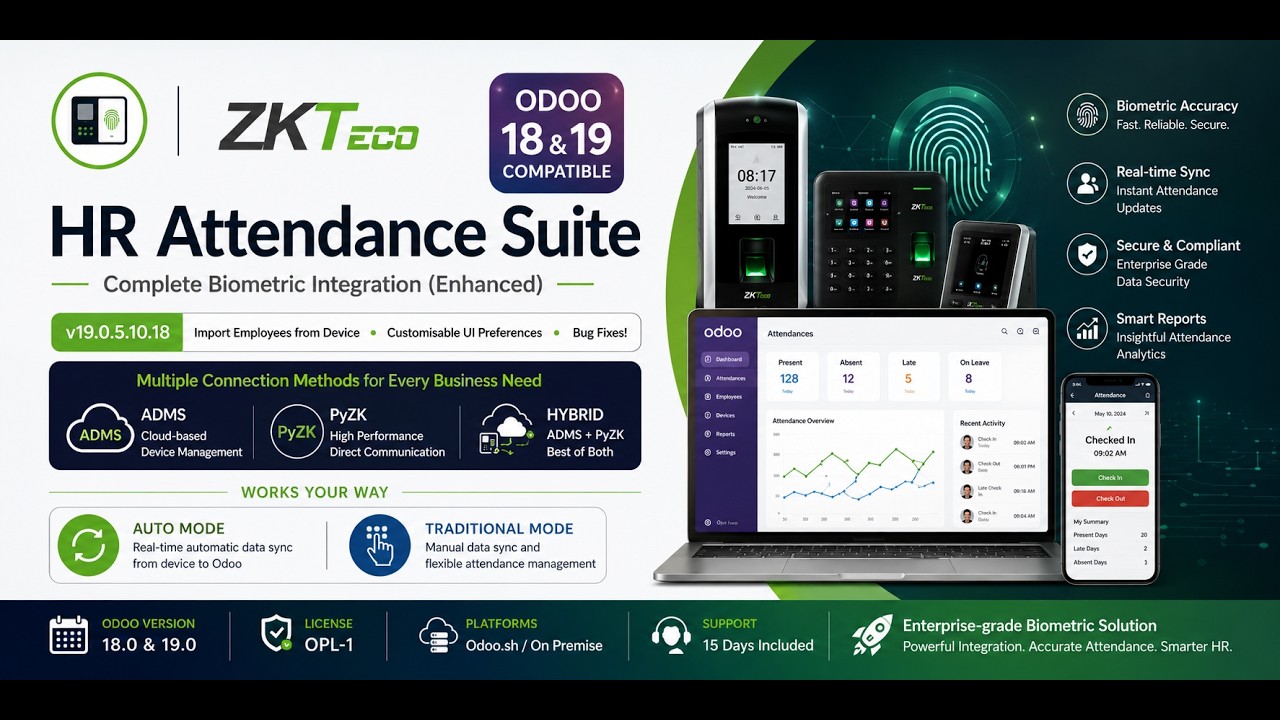
The most comprehensive biometric attendance solution for Odoo 19 — ZKTeco and Hikvision devices in the same database, real-time analytics dashboard, intelligent anomaly detection, and enterprise-grade reporting. Works for businesses of all sizes.
Two Vendors, One Database
Sites with mixed hardware normally have to run two Odoo databases — one per device brand — and reconcile payroll by hand. This module removes that: ZKTeco and Hikvision terminals live in the same database, feed the same attendance pipeline, and are paid from the same payroll run.
ZKTeco terminals
- Direct (pyzk) over TCP 4370 — Odoo dials the device on the LAN
- Cloud (ADMS) — device dials Odoo, commands queued for its next check-in
- Fingerprint templates stored in Odoo and copyable between ZKTeco units
- LCD messages, voice prompts, live capture, remote reboot
Hikvision terminals
- Direct (ISAPI) over HTTP/HTTPS with digest auth
- Event Push (HTTP Host Notification) — works behind NAT and on Odoo.sh
- Face photo upload, RFID card enrolment, live fingerprint capture
- Door/lock control and push-configuration review before anything is written
What is shared, and what is not
Shared across both vendors
- One attendance stream — both vendors' punches feed the same pairing, roster and anomaly logic
- One payroll run, one payslip, one salary certificate
- One dashboard, one attendance map, one report set
- One employee record with a single Device User ID
Deliberately not shared
- ✗ No cross-vendor biometric transfer. A ZKTeco fingerprint template and a Hikvision face image are different kinds of data on different transports — neither device can read the other's.
- ✗ Each vendor's copy-users wizard only lists that vendor's devices, and refuses a cross-vendor pair server-side, not just in the form.
- ✗ Enrolment buttons on the employee form appear only for the vendors you actually have.
Watch: Module Walkthrough & Setup Guide
A complete video tour — features, configuration and how to connect your first device.
Watch on YouTube: youtube.com/watch?v=zaNOaj6zlH0
Detailed Features of Our Module
Click a feature to explore it in detail

Real-Time Attendance Dashboard
A complete visual command center for your workforce attendance — updated live.
- Monthly calendar grid — P / LT / A / L / W / H per employee per day
- Today's counts — Present, Absent, On Leave, Late, Total Fine
- Top Present / Absent / Late leaderboards — click to filter
- Department & employee filter — instant re-render
- Download Excel — full monthly sheet with colour-coding

Late Check-in Management
Configurable tolerance, automatic penalties, and approval workflows.
- Grace period — set tolerance minutes before marking late
- Auto penalty — per-minute or fixed amount deduction
- 4-state workflow — Draft → Approved → Deducted / Refused
- Payroll sync — deductions pushed to payslip automatically
- Real-time detection — LT appears on dashboard immediately after punch

Biometric Device Sync
Four connection modes across two vendors — ZKTeco Direct (pyzk) and ADMS Cloud, Hikvision Direct (ISAPI) and Event Push.
- ZKTeco Direct / pyzk — LAN connection, instant download, 15+ series
- ZKTeco ADMS / Cloud — device pushes data, no port forwarding needed
- Hikvision Direct / ISAPI — Odoo dials the terminal over HTTP(S)
- Hikvision Event Push — terminal dials Odoo, works behind NAT and on Odoo.sh
- Auto check-in/out — intelligent punch type detection, same pipeline for both vendors
- Import employees — pull users directly from either vendor's device into Odoo

Reports & Analytics
Excel, PDF and on-screen reports covering every attendance dimension.
- Monthly attendance sheet — colour-coded P/LT/A/L per employee
- Department filter — download report for any department
- Detailed daily — check-in/out time, worked hours, late minutes
- Anomaly report — missing checkout, duplicate punches
- Late check-in report — penalties, tolerance, status breakdown
Built-in Payroll + Native Payroll Bridge
Full attendance-to-payroll pipeline — works with our own system and native Odoo payroll.
- Auto deductions — late penalties pushed to payslip on confirm
- Absence fine — configurable per-day deduction
- Salary templates — basic, allowances, contract-based
- Payslip PDF & Excel — branded, printable
- hr_payroll sync — Community & Enterprise
- ★ NEW — Attendance Statement — auto-fills wage, housing, transport, advance, deductions from native payroll (confirmed payslips → contracts → salary rules)
NEW FEATURE
Attendance & Salary Statement
A two-step wizard generating a combined attendance + salary statement for all employees. Salary data auto-filled from native Odoo payroll — no manual entry needed.
- Wage from hr.contract
- Housing & Transport (auto-detected)
- Advance & Deductions
- Days, hours, overtime, late
- Net salary (auto-computed)
- PDF & Excel output
Works with both
Community Enterprise
Same module, runtime detection.
No separate version needed.
NEW IN THIS VERSION
Interactive Attendance Dashboard
A completely new visual command center for your workforce attendance — real-time, colour-coded, and actionable at a glance.
Smart Holiday Detection
The dashboard automatically detects if today is a public holiday and displays a prominent banner with the holiday name. It also shows the next 2 upcoming holidays so your team is always informed in advance.
Today's Live Overview
Six real-time stat cards show Total Employees, Present, Absent, On Leave, Late Today, and Total Fine — all updated live with department and employee filters applied instantly.
Colour-Coded Monthly Calendar
A full monthly grid per employee shows every day as Present (), Absent (A), Leave with short code (CL, SL, OH…), Weekend (W), or Holiday (H). Late days are highlighted in a distinct colour.
Leave Type Short Codes
Instead of a plain "L", each leave day shows its exact type code — CL (Casual Leave), SL (Sick Leave), OH (Official Holiday), and more. Codes are fully customisable from the Leave Type configuration.
Employee Monthly Summary
Click any employee row to open a detailed summary panel showing their monthly totals: days Present, Absent, on Leave, Weekend, Holiday, and Late — all in one compact card with their photo and job title.
Configurable Weekend Days
Weekend days are no longer hard-coded. Choose any combination of days (e.g. Friday + Saturday for Bangladesh) from Attendance Settings. The dashboard, calendar, and reports all respect your configuration.
Holiday Banners & Stat Cards
Employee Summary Panel

Monthly Calendar with Leave Codes (CL / SL / OH…)
Configurable Weekend Days Setting
 NEW MAP FEATURE
Unified Attendance Map
See biometric device locations, geofence radius, employee GPS check-ins, check-outs, attendance source, department filters, and date ranges on one interactive map.

Device Locations
Store latitude, longitude, location name, and geofence radius for each biometric device.
Team Check-ins
Managers can review team GPS pins while employees only see their own attendance records.
Fast Filters
Search by employee, device, mobile, ZK ID, department, and date range.

Why Choose This Suite?
100% PyZK Integration
Direct device communication without third-party APIs
Auto Mode NEW
Intelligent check-in/check-out that prevents HR mistakes
Live Capture NEW
Real-time attendance monitoring as events happen
Advanced Dashboard
Interactive Chart.js visualizations & analytics
Door Control NEW
Remote door unlock with configurable duration
Audio Feedback NEW
Custom sounds for check-in, check-out & errors
LCD Messages NEW
Personalized welcome/goodbye on device screen
Duplicate Prevention
Ignore repeated punches within time window
Import from Device NEW
Pull employees directly from biometric device into Odoo
UI Preferences NEW
Choose your landing page and default view from Settings
Auto Time Sync NEW
Device clock auto-corrected before every download
Robust Error Logs NEW
Pinpoint EXACTLY why a punch failed (Savepoints active!)
Connection Modes — Both Vendors
Choose the perfect connection strategy for your deployment architecture, per device, per vendor.

— Three Connection Modes
Direct Mode (PyZK)
Best for local networks or VPN connections where Odoo can directly reach the device IP.
- 100% hardware control
- Real-time Live Capture
- LCD & Voice messages
- Door access control

Cloud Mode (ADMS)
Best for SaaS/Cloud Odoo instances. The device pushes data to Odoo over HTTP(S). No port forwarding needed!
- Perfect for remote sites
- Bypass firewalls easily
- Auto-registers devices
- Remote Fingerprint Enrollment
Hybrid Mode
The ultimate flexibilty. Uses ADMS for reliable attendance push, and PyZK for deep hardware control.
- Our Unique Offering!
- Best of both worlds
- Automatic attendance sync
- Full hardware capabilities

— Three Connection Modes
Direct Mode (ISAPI)
Best for local networks or VPN connections where Odoo can directly reach the device IP. Plain HTTP with digest auth — no vendor SDK, no binary dependency.
- Full device control
- Face, fingerprint & card enrolment
- Live clock & timezone detection
- Door access control

Event Push (Host Notification)
Best for SaaS/Cloud Odoo instances. The device sends each punch to Odoo over HTTP the instant it happens. No port forwarding needed!
- Perfect for remote sites
- Works behind NAT/firewalls
- One-click device configuration
- No polling delay

Hybrid Mode
The ultimate flexibility. Push for live attendance, ISAPI for enrolment, door control and backfilling anything missed. Recommended.
- Recommended setup
- Best of both worlds
- Automatic attendance sync
- Full hardware capabilities

Compatible Device Models — Both Vendors
ZKTeco terminals connect over the standard pyzk (direct) or ADMS (cloud push) protocol — any TCP/IP fingerprint/face terminal that speaks either is supported. terminals connect over the standard ISAPI access-control protocol; DS-K1T320EFWX is directly tested end-to-end (connection, enrolment, attendance download and event push, all verified live on real hardware), the series below share the same ISAPI access-control API family.

Our own Hikvision DS-K1T320EFWX test unit — the device every Hikvision claim on this page was verified against

Live clock/timezone detection and attendance mode configuration on a real Hikvision unit
| Series | Status |
|---|---|
| uFace Series | uFace 202, uFace 800 |
| iClock Series | iClock series |
| K Series | K40, K14 |
Compatible with any ZKTeco terminal speaking the standard pyzk or ADMS protocol.
| Series | Status |
|---|---|
| DS-K1T320 Series | Tested |
| DS-K1T331 / 342 / 343 / 606 / 671-673 / 804 / 8003 Series | Expected |
| DS-K1A802, MinMoe, DS-K2600 Controllers | Expected |
Tested = verified live end-to-end on real hardware. Expected = same ISAPI access-control API family as the tested model.
Four Intelligent Attendance Modes
Choose how your module processes each punch. Configurable per device — mix and match across your organization.

Traditional Mode
Uses the device's punch type directly.
- Punch type 0 = Check-in
- Punch type 1 = Check-out
- Device must be configured correctly
- Multiple records per day possible
Best for: Devices with separate in/out buttons
Auto Mode
Ignores device punch type. Auto-alternates.
- 1st punch → Check-in
- 2nd punch → Check-out
- 3rd punch → Check-in again
- Prevents HR mistakes
Best for: Simple single-button devices
Auto Per Day NEW
One attendance record per employee per day.
- First punch of day = Check-in
- Last punch of day = Check-out
- Middle punches update check-out
- Auto-closes missed check-outs
Example:
08:55 → Check-in
12:00 → Check-out updated
13:00 → Check-out updated
17:30 → Final check-outBest for: Most common use case
Traditional Per Day NEW
Device punch type respected, but max one in/out per day.
- Only first check-in counts
- Only first check-out counts
- Duplicate punches ignored
- Auto-closes missed check-outs
Best for: Strict one-in/one-out policies
Smart Edge Case Handling (Per-Day Modes)
Employee forgot to check out yesterday
Module auto-closes yesterday's record at 23:59:59, then creates today's new check-in normally.
Multiple punches throughout the day
In Auto Per Day, every punch after the first updates the check-out. The last punch always wins.
Timezone-aware day boundaries
Uses the device's configured timezone to determine "today" — so midnight is always correct for your location.
Works with all connection modes
PyZK Download, Live Capture, and ADMS Cloud Push all support all four attendance modes.
Robust Error Logging & Transaction Protection
Enterprise-grade resilience. Every failed punch is logged with the exact reason — your bulk downloads never crash midway through.
Database Savepoint Protection
Each attendance record is processed inside an isolated database savepoint. If one record fails (overlap, invalid timestamp, missing employee), only that record is rolled back — the rest continue processing normally.
- Downloads 10,000+ records without crashing
- Bad records are skipped, not fatal
- Works for both PyZK & ADMS modes
- Cron jobs complete even with errors
Common Reasons a Punch May Fail (All Auto-Logged)
Overlapping Attendance
Employee already has an active shift covering the punch timestamp. Odoo rejects duplicate overlap.
Invalid Timestamp
Device sent a corrupted or impossible date (e.g. Jan 1, 1970 after a power reset).
Deleted Employee
Employee was removed from Odoo but still punches on the biometric device.
Unmapped Device User
Device user ID not linked to any Odoo employee. Logged as a warning for admin review.
Quick Setup Guide
Get your ZKTeco devices connected in minutes. Choose the method that matches your network.
Direct Mode (PyZK) Setup
For local network / VPN deploymentsRequirement: Odoo server must be able to reach the device IP on port 4370 (UDP).
Install the PyZK2 library on your Odoo server (maintained fork, Python 3.12 compatible):
pip3 install pyzk2
- Find the device IP: On the device menu, go to COMM → Ethernet → IP Address.
- In Odoo, go to Attendances → ZK Devices → Create.
Fill in:
- Name: e.g. "Main Entrance"
- IP Address: The device IP (e.g. 192.168.1.201)
- Port: 4370 (default)
- Connection Mode: Direct (PyZK)
- Attendance Mode: Choose your preferred mode
- Click "Test Connection". If successful , you're ready!
- Map employees: Set each employee's ZK Device User ID in their HR profile (must match the ID on the device).
- Click "Download Attendance" to fetch records, or enable the Scheduled Action for automatic downloads.
Cloud Mode (ADMS) Setup
For Odoo.sh, cloud hosting, or remote sitesNo port forwarding needed! The device initiates the connection to your Odoo URL.
- Ensure your Odoo is accessible via a public URL or IP (e.g. mycompany.odoo.com or 192.168.1.10:8069).
- In Odoo, go to Attendances → ZK Devices, open (or create) the device record and copy the Device Server Address from the ADMS Cloud Settings group.
On the ZKTeco device, go to COMM → Cloud Server Setting:
- Enable: Yes
- Server Address: paste the Server Address (firmware) value from the device record in Odoo
⚠ Do NOT type https:// — firmware takes host + path only, no protocol. - Server Port: paste the Server Port (firmware) value from the device record in Odoo
8069 = direct Odoo (no proxy) · 80 = HTTP via nginx · 443 = HTTPS via nginx - HTTPS / SSL toggle (if present on your device model): turn ON when port is 443, OFF for port 80 or 8069
- Restart the device. It connects automatically and registers itself in Odoo.
- Configure the device record: set Connection Mode, Attendance Mode, and map employees by Device User ID.
- Done! Attendance is pushed automatically in real-time.
Single Database — The Device Server Address looks like myodoo.com/db/my_database. Configure it exactly as shown — do not add https://.Multiple Databases on the Same Server — Each database has its own unique Device Server Address containing /db/database_name. Configure each physical device with the address of its database. Always copy from the Odoo device record — do not type manually.
Hybrid Mode — Best of Both Worlds
Want automatic attendance push (ADMS) plus hardware control like LCD messages, voice feedback, and door unlock (PyZK)? Set Connection Mode = Hybrid. The device pushes data via ADMS, while Odoo uses PyZK for hardware features.
Attendance (ADMS side)
- Configure the Device Server Address exactly as in the ADMS setup above (with /db/database_name)
- Multi-database routing works the same way as ADMS mode
- Real-time push — no manual download needed
Hardware Control (PyZK side)
- Requires Odoo to reach the device on TCP port 4370
- On-premise Odoo: works on same LAN
- Cloud Odoo: requires VPN or port forwarding on the site router
- If network access is not possible, use ADMS-only mode (attendance still works, hardware control features are not available)
Troubleshooting & Common Issues
"ATTLOG: 1 failed" / Employee Not Found
This happens when the device sends a punch for a user ID that is not linked to any employee in Odoo.
Solution:
- Go to HR → Employees in Odoo
- Open or create the employee record
- Set the "Device ID Number" field to match the user ID on the biometric device
- Save. Next punch will be processed automatically!
ADMS Device Not Appearing in Odoo
The device connects but doesn't show in the device list.
Solution:
- First create the device in Odoo with Connection Mode = Cloud (ADMS)
- Set the Device Serial Number to match the device's serial (shown on device menu)
- Restart the device — it will auto-match on next heartbeat
ADMS Data Goes to the Wrong Database (Multi-DB)
On a server with multiple Odoo databases, attendance punches are recorded in the wrong database or are missing entirely.
Solution:
- Open the device record in Odoo → Attendances → ZK Devices
- Under ADMS Cloud Settings, copy the Device Server Address field
- On the ZKTeco device: COMM → Cloud Server Setting → Server Address
- Paste the copied address (it contains /db/database_name)
- Save and restart the device
Why: Each database has a unique URL path. Without it, Odoo cannot determine which database the device belongs to and defaults to the first/only configured database.
ADMS Device Matched by IP (No Serial Number)
Device has no serial number (shows as 0) and is matched by IP address instead. In multi-database setups the IP fallback will not work unless the correct database URL is used.
Solution:
- In Odoo, create the device record manually first with the correct IP address and Connection Mode = Cloud (ADMS)
- Copy the Device Server Address from the ADMS Cloud Settings group
- On the device: COMM → Cloud Server Setting → set Server Address to the copied value (includes /db/database_name)
- Restart the device — it connects to the correct database and the IP fallback matches the pre-created record
Note: Without a serial number, auto-registration is blocked by design. The device must be pre-created in Odoo so the IP fallback has a record to match against in the right database.
How to Find Device User ID
Each user enrolled on the biometric device has a unique ID number.
Finding the ID:
- On Device: Menu → User Mgt → All Users → select user → see ID
- In Odoo Log: Check the server log for the error message — it shows the exact Device ID Number to use
- Example log: No employee found with Device ID Number '6666' → Set employee's Device ID = 6666
ADMS Auto Time Sync
In ADMS mode, the device clock is automatically synced from the server on every heartbeat.
Important:
- Device time = Server Time. If you manually change time on the device, it will revert within seconds.
- To change your device time, you must change your server time.
Employee Mapping Guide
Properly mapping employees is crucial for a smooth experience and to avoid duplicate records.
Recommended Workflow:
- Create Employee in the Odoo HR module first.
- Set ZK Device User ID in the employee's Biometric settings tab.
- Connect the Device to Odoo.
- Download Attendance: Now, attendance records will sync perfectly without duplicates!
Direct Connection (Recommended)
If your device is on the same local network as Odoo, use Direct connection for the smoothest experience. You can:
- Download attendance with one click
- Import employees straight from the device — no need to create them manually in Odoo first
- Control the device hardware (door, LCD, sounds)
Cloud Connection
If your Odoo is hosted online and the device is at a remote site, Cloud connection is the easiest option — the device sends data to Odoo automatically. Note:
- Attendance arrives automatically — no manual download needed
- You must create employees in Odoo and set their device ID numbers before punches are recorded
- For full device control features, consider Hybrid mode
What's New
NEW
Copy Users & Fingerprints Between Devices
Adding a second entrance? Replacing a failed unit? You no longer have to re-enrol every employee. Copy enrolled users and their fingerprint templates from one ZKTeco device to another, directly inside Odoo — no USB stick, no vendor software.
How to use it
- Make sure each employee's ZK Device User ID is filled in on their employee record. Matching is done on this field — anyone without it is skipped (and named in the result, so nothing fails silently).
- Open the source device → Pull Fingerprints to Database. This reads the templates off the device and stores them in Odoo.
- Click Copy Users to Another Device, pick the target device and (optionally) specific employees. Leave the employee list empty to send everyone.
- Read the compatibility check shown in the wizard before you confirm — see the warning below.
- Test a few employees on the target device. Please do not skip this step.
What actually transfers
- Fingerprint templates
- User record (PIN + name)
- Face templates — not portable
- Palm templates — not portable
- Passwords & RFID cards
Employees enrolled by face or palm must re-enrol on the new device. That is a hardware limitation, not something any Odoo module can work around.
Please read: fingerprints are not a universal format
A fingerprint template belongs to the reader's matching algorithm. A template captured by a ZKFinger v10 device is normally not readable by a v9 device (and vice-versa). The uncomfortable part: the device usually accepts the upload without any error and then simply never matches the finger.
The module compares both devices first and shows a clear red warning when the algorithm versions differ — but it cannot repair a genuine incompatibility. Transfers are safest between the same device model with the same fingerprint algorithm version.
Always verify a few employees on the target device before relying on it for live attendance. Testing on the device is the only way to be certain.
Works with both connection modes
Direct / Hybrid (LAN): written to the device immediately over TCP.
Cloud (ADMS): queued as commands — the device applies them on its next check-in, so it is not instant. Track progress in the device's Commands list.
Safe by design
Templates are stored in Odoo first, so both devices never need to be online at the same time and a failed unit can be restored later. The device is locked during writing and always released afterwards, even if a write fails. Existing attendance data is never touched.
NEW
Attendance & Salary Statement — Native Payroll Bridge
A complete two-step wizard that generates a combined attendance + salary statement for your entire workforce. Salary data is auto-filled from native Odoo payroll — wage, housing, transport, advance deductions and other components are detected automatically from salary rule codes and names.
Auto-fill priority
- Confirmed payslip for the period
(most accurate — reads actual computed lines) - Active contract + salary rules
(fixed/percentage rules computed) - Our own salary system
(fallback if native payroll is off)
Statement columns
- Basic Wage
- Housing Allowance
- Transport Allowance
- Advance & Other Deductions
- Days Present / Hours / Overtime / Late
- Net Salary (auto-computed)
Community
hr_payroll_communityEnterprise
hr_payroll built-inOur System
dotbd.payslip
Extensible by design
Adding a new column is 6 easy steps:
- Add a Monetary field to the line model
- Add keyword detection (e.g. MEAL_KW)
- Include it in action_load()
- Add <field> to wizard view
- Add column to Excel export
- Add <th>/<td> to PDF
Full guide is embedded in the wizard view and PDF template as comments.
Enable in Settings
Attendances → Configuration → Settings
Toggle: Use Native Odoo Payroll for Attendance Statements
(Default: ON — auto-hides if payroll not installed)
NEW
Multi-Database ADMS Routing
When multiple Odoo databases share one server, each database now gets its own ADMS URL path (/db/database_name). Data always goes to the correct database — no more mix-ups.
NEW
Device Archive / Restore
Archive unused devices to hide them and stop ADMS pushes. Restore with one click. Archived devices are excluded from scheduled downloads automatically.
NEW
Smart ADMS Port Detection
Device page shows the exact Server Address and Server Port to paste into ZKTeco firmware — auto-detected from web.base.url. Supports 8069, 80 and 443.
NEW
Configurable ADMS Offline Threshold
Set exactly how many minutes without a heartbeat before a device is marked ADMS Offline. No more hardcoded 5-minute guess — match your device's actual heartbeat interval.
NEW
PyZK Connection Status Tracking
Every PyZK connection attempt is now tracked — Online, Offline, or Unknown — with timestamps for Last Success and Last Attempt. Know immediately if direct connection is failing.
NEW
Hybrid Connectivity Warning
In Hybrid mode, if one connection method goes down the device still shows Online — but a clear warning banner tells you which method is down, so nothing is silently broken.
Core Features
Biometric Integration
Multi-device support (15+ ZKTeco series), face & fingerprint, auto check-in/out mode, duplicate punch prevention.
Real-Time Dashboard
Interactive charts, live KPIs, today's present/absent/late/leave cards, monthly calendar, one-click status filters.
Anomaly Detection
Missing check-in/out, duplicate punches, violation tracking, automated categorization, compliance reports.
Late Check-in Management
Configurable grace periods, auto penalty calculation, 4-state approval workflow, payroll integration, email alerts.
Attendance Sheets
Monthly calendar-style layout, colour-coded statuses, leave & holiday integration, PDF & Excel export.
Comprehensive Reporting
Summary & detailed reports, anomaly compliance, penalty reports, Excel/PDF export, custom date range filtering.
Compatible Device Series
ZKTeco series below are supported via Direct (pyzk) or Cloud (ADMS) connection modes. Hikvision access-control terminals are supported over ISAPI — Direct or Event Push. If your device has TCP/IP networking and speaks the standalone SDK (ZKTeco) or ISAPI (Hikvision), it works.
| Series | Models | Supported |
|---|---|---|
| uFace Series | uFace202, uFace302, uFace402, uFace600, uFace800, uFace800Plus | ✓ |
| F Series | F09, F16, F18, F19, F21, F22, F25, F26, F28, F35 | ✓ |
| MB Series | MB10, MB20, MB30, MB130, MB160, MB10-VL, MB360, MB2000, MB560-VL | ✓ |
| Mini Series | MiniAC Plus, MiniTA, MiniAC | ✓ |
| EFace Series | EFace 10 | ✓ |
| iClock Series | iClock 680, iClock 700 | ✓ |
| SpeedFace Series | SpeedFace V5, SpeedFace-V3L, SpeedFace-V5L, SpeedFace M4, SpeedFace-mini | ✓ |
| BioFace Series | ProBio Plus Series | ✓ |
| ProMA Series | ProBio Plus Series | ✓ |
| FaceDepot Series | FaceDepot-7BL, FaceDepot-4A, FaceDepot-7C | ✓ |
| K Series | K40, K40 Pro, K45, K45 Pro, K60, K999 PRO | ✓ |
| S Series | S500, S560, S880, S900, S922 | ✓ |
| HORUS Series | HORUS TL1, HORUS E1 | ✓ |
| iFace Series | iFace 900, iFace 950, iFace 302 | ✓ |
| BioPro Series | BioPro MV30, BioPro SA20 | ✓ |
Hikvision access-control terminals (ISAPI)
Verified against a DS-K1T320EFWX running firmware V3.9.50 — every ISAPI call this module makes is recorded against real hardware in docs/ISAPI_REFERENCE.md, not copied from a spec sheet. Other Hikvision terminals exposing the same AccessControl ISAPI surface work the same way.
| Capability | How it is used | Supported |
|---|---|---|
| Attendance download | Paged AcsEvent search, incremental by serial number | ✓ |
| Event Push | HTTP Host Notification — the device dials Odoo, so no inbound access is needed (Odoo.sh, NAT) | ✓ |
| User create / search | UserInfo/Record and UserInfo/Search — import employees from the device | ✓ |
| Face enrolment | Employee photo uploaded as a face template, after an on-screen confirmation of the exact image | ✓ |
| Card enrolment | RFID card number attached to an existing device user | ✓ |
| Fingerprint capture | Interactive — the employee presses a finger on the reader while Odoo waits | ✓ |
| Door / lock control, reboot, time sync | Remote door open and clock synchronisation, with POSIX-timezone decoding shown in plain UTC offsets | ✓ |
| ISUP 4.0 / 5.0 | Not implemented, and not needed. ISUP is a closed binary event protocol with no user-provisioning calls; every ISUP configuration endpoint returns notSupport on the tested firmware. Its "Register Status: Offline" on the device screen is expected and harmless. | ✗ |
Connection Requirements
- Device must support TCP/IP connection
- ZKTeco: Standalone SDK Protocol — Hikvision: ISAPI
- Firmware should be up-to-date
Network connectivity via:
- LAN (same network)
- VPN (site-to-site)
- Port Forwarding (static IP)
Getting Started Guide
1. Configure Your ZKteco Device

Access the Attendance module from the main menu

Navigate to Biometric Devices section

Click "New" to add a new device

Enter device IP, port, and password

Test connection to verify setup
1b. Connect Your Hikvision Device
Go to Attendances → Biometric Devices → Create, enter the device IP, port and login, choose a connection mode (Direct/Push/Hybrid — see above), then click Test Connection.

Every connected Hikvision device, at a glance — status, user count, record count, storage, connection mode
The device form after a successful connection — live status, record/user/operation counters, full action toolbar

Model, firmware, clock and supported capabilities (face / fingerprint / card / door), read live from the device

Device Identity — push status, offline threshold and the exact Listening Endpoint to point the device at for Event Push. Odoo builds the URL for you; copy it straight into the terminal's HTTP Host Notification settings.

Map employees to their Device User ID, or import users directly from the device

Operation logs for every push event and ISAPI call, with success/fail counts for troubleshooting
Our own DS-K1T320EFWX test unit — the device every Hikvision claim on this page was verified against
2. Advanced Device Management NEW

Configuration Tab: Connection details, attendance modes (Auto/Traditional), duplicate prevention settings, and location information

Capacity & Health: Monitor user capacity, fingerprint enrollment, face templates, and attendance record storage

Live Monitoring: Real-time attendance capture settings with instant notifications and event statistics

Messages & Audio: LCD message customization, welcome/goodbye messages, and audio feedback with 55+ voice options

Door Control: Remote door unlock, lock status monitoring, and configurable unlock duration with security warnings

Users Tab: Sync employees to device, backup biometric templates, verify employee data, and automatic enrollment

Status Bar: Quick overview of device status, attendance records count, enrolled users, and backup templates
3. Attendance Overview & Working Schedules

View real-time attendance records and monitoring

Configure working schedules for employees

Assign schedules and link ZK User IDs
4. Attendance Settings & Rules

Configure tolerance time and validation rules

Setup late check-in penalties and grace periods

Configure automated cron jobs and actions
5. Analytics Dashboard

Interactive charts and real-time KPIs

Comprehensive attendance statistics

Department-wise attendance analysis

Employee Time Off & Manual Entries: Track leave dates, monitor manual attendance with missing check-out alerts
5b. Attendance Dashboard — See Everything at a Glance
A live, interactive attendance view built right into your Odoo. No reports to run — just open the dashboard and instantly know who is in the office, who is late, who is absent, and who is on leave — all in one screen.

The full Attendance Dashboard — today's numbers, monthly calendar, filters, and employee details all in one place
Today's Overview Cards
At the very top, four cards instantly show you how many employees are total, how many are present, absent, and on leave — right now, today. When late penalties are enabled, two extra cards appear showing today's late count and total fine amount.
One-Click Status Filters
Click Present, Absent, Late, or On Leave buttons to instantly show only the employees matching that status. The count on each button always reflects today's numbers. Click again to clear the filter.
Full Monthly Calendar
See every employee's attendance for the entire month in a scrollable grid. Each day shows a colour-coded status: green check for present, red A for absent, amber check for late, L for leave, W for weekend, and H for public holiday. Summary totals appear at the end of each row.
Click Any Employee for Their Summary
Click any employee row to highlight it and reveal a personal summary card showing their exact monthly counts for Present, Absent, Leave, Weekend, Holiday, and Late days. Click the same row again — or the close button — to dismiss it.
Top Rankings in One Click
Four sort buttons let you instantly re-order the list: Top Present puts the most-present employees first, Top Absent shows who missed the most days, Top Late surfaces the most frequently late arrivals, and Top Leave highlights who took the most time off.
Role-Based Access
Managers and HR officers see the full team. Regular employees who open the dashboard see only their own attendance — no one else's data is ever visible to them. Filters and sort buttons work the same way for everyone within their allowed scope.
6. Anomaly Detection & Analysis

Automatic anomaly identification

Detailed anomaly breakdown

Statistical analysis of issues

Compliance and audit reports
7. Reports & Exports

Multiple report generation options

Custom date range selection

Advanced filtering options

Visual anomaly trends

Excel export functionality

Calendar-style attendance view

Comprehensive daily breakdown

Monthly attendance summary
What's New in This Version
Auto Check-in/Check-out RECOMMENDED
Intelligent punch processing — first punch = check-in, second = check-out. No device config needed, prevents HR mistakes.
Real-Time Live Capture
Punches appear in Odoo the instant they happen. Triggers LCD messages and audio feedback automatically — no polling delays.
Intelligent Time Sync
Device clock auto-corrected before every download. Drift detection >30 s, cron-safe timezone, multiple sync options.
Multi-Device Global Sort
Download all devices first, then process punches in true chronological order. Eliminates duplicates for multi-device employees.
Import Employees from Device
Pull the full enrolled user list from your ZKTeco device directly into Odoo. Preview, select, import — no manual entry.
Identity Protection
Protects biometric data during sync, prevents ghost ID cross-assignment, and logs unmapped device users for HR review.
Multi-Database ADMS Routing
Each database gets its own ADMS URL with /db/name — devices are routed to exactly the right database, every time.
Attendance UI Preferences
Configure the default landing page and overview view (List or Gantt) company-wide — from Settings, no developer needed.
Odoo Punch Type Visibility
New "Odoo Punch Type" column in Attendance Analysis. Chronological processing fix — check-out can no longer be stored before check-in.
Enterprise Features
Integration & Automation
- Time Off (hr_holidays) integration
- Public holidays detection
- Working calendar respect
- Overtime tracking
- Payroll deductions (optional)
- Automated scheduled actions
Security & Compliance
- Multi-company support
- Role-based access control
- Complete audit trail
- Data security & encryption
- Compliance reporting
- GDPR ready
What's Included
Complete Package
- Full source code with OPL-1 license
- Comprehensive documentation
- Installation guide
- Sample data for testing
15 Days Support Included
- Installation guideline & step-by-step setup help
- Bug fixes during support period
- Installation support (hands-on if needed)
- Query & usage questions answered
- AnyDesk / online meeting support available
INCLUDED
Built-in Payroll & Native Payroll Bridge
Odoo Community Edition does not come with a payroll module. We built one — directly inside this suite — so Community users can manage salaries, payslips & deductions without any extra app. And if you're on Enterprise or have hr_payroll_community installed, our Attendance Statement wizard connects directly to your existing payroll setup.
Works with Odoo Community & Enterprise. One module, runtime detection — no separate version needed.
Auto Payslips
Salary Templates
Auto Deductions
Payment Tracking
PDF & Excel
Festive Bonus
Attendance Statement ★
To enable: go to Settings → Users, open a user, and tick ZKTeco Payroll Access under ZK Attendance permissions.
Frequently Asked Questions
Does this work with Odoo on AWS/Cloud with devices in a local office?
Yes! However, since the server is on the cloud and devices are behind a local router, you need a network configuration:
- VPN (Recommended): Set up a Site-to-Site VPN between your office network and your Cloud Server.
- Port Forwarding: Forward the device port (default 4370) on your office router to the public internet (requires Static IP at office).
Is my ZKTeco device compatible (e.g., MB10VL, K40)?
Yes, almost certainly. This suite supports devices that use the Standalone SDK Protocol (TCP/IP).
Compatible models include: uFace 202, uFace 800, iClock series, K40, K14, MB10VL, F18, UA300, ZK4500, and more.
Simple test: If your device works with the old ZKTime.net 3.0 software, it will work with this module!
Is my HIKVISION device compatible (e.g., DS-K1T331, DS-K1T804)?
Very likely, if it's an access-control terminal. This suite talks Hikvision's standard ISAPI protocol over HTTP — the same interface every DS-K1T/DS-K2 access terminal and controller exposes.
Directly tested: DS-K1T320EFWX. Same-family models (DS-K1T331, DS-K1T342/343, DS-K1T606, DS-K1T671/672/673, DS-K1T804, DS-K1T8003, DS-K1A802, MinMoe, DS-K2601/2602/2604) are expected to work — the module reads each device's own capability list, so it adapts automatically to what that model actually supports.
Simple test: if your device has a web login page and answers on port 80/443, it almost certainly speaks ISAPI.
Do you support Hikvision's ISUP protocol?
No, by design. ISUP is a proprietary binary protocol on TCP 7660 that requires Hikvision's closed-source SDK and is unreachable over standard ISAPI. Every feature on this page — enrolment, attendance, door control, event push — works entirely over ISAPI/HTTP instead, so no ISUP dependency is needed. The device form shows a read-only note explaining this if you look for it.
Do I need a Windows Server or Middleware?
No! This is a 100% native Python solution installed directly inside Odoo. It communicates directly with the devices — ZKTeco or Hikvision. No extra Windows server, middleware, or "attendance service" is required for either vendor.
My ADMS device shows Offline — what should I check?
Check three things:
- Offline Threshold: Open the device record → ADMS Cloud Settings → Offline Threshold (min). Set it to at least 2× your device's heartbeat interval (default 10 min).
- Server Address: Copy the Device Server Address from the Odoo device record and paste it into ZKTeco firmware — never type it manually.
- Odoo.sh / Cloud: Use the domain name, not an IP address. Nginx routes by domain — a raw IP will not reach your specific tenant.
When should I use Hybrid mode instead of ADMS-only?
Use Hybrid mode when you want automatic cloud push (ADMS) for attendance and hardware control (LCD messages, door unlock, voice feedback) via PyZK. ADMS alone cannot send commands to the device. If the device is behind a firewall that blocks port 4370, use ADMS-only — attendance still syncs, hardware control features are not available. In Hybrid mode, if one method goes down, the device stays Online but a warning banner shows which method is down.
New: Missing-Punch HR Review & Roster / Shift Scheduling
Every new capability below is opt-in (off by default) and never modifies payroll. Turn each on under Settings → Attendance. Works on Odoo 15, 16, 17, 18 and 19.
Missing-Punch HR Review
When an employee forgets a punch, the module no longer invents a silent time. It uses the employee's last real device punch where possible; otherwise it flags the record for HR.
- Missing check-out → auto-closed at shift/roster end, flagged ⚠️.
- Missing check-in (lone check-out) → placeholder check-in, flagged ⚠️.
- Attendance Review page: Approve, Correct (edit), or Re-open — with a full audit trail (original times + who reviewed).
- Reason filters, employee chatter notes, and bulk approve.
Enable: Settings → Attendance → Attendance Review (Missing Punches) → “Enable HR Review”. Then open Attendance → Attendance Review.
Smart Flags + Daily Digest Email
- Suspected wrong-direction (Auto mode): a lone punch whose device button says “check-out” is soft-flagged as a likely forgotten check-in.
- No work schedule: flags employees who have no schedule assigned, so HR can add one.
- Late beyond maximum: a check-in past the Maximum Late Time counts no fine — instead it is flagged so HR decides (absent, half-day, or excused). Optional toggle.
- Off-schedule punch: a check-in far outside the rostered window (e.g. 7 PM for a 9–5 shift) is flagged for review.
- Daily digest email to HR managers — fully customizable subject/intro and can be enabled/disabled.
Enable: the same Attendance Review settings block — tick the flags you want and edit the digest subject/intro.
Roster / Shift Scheduling
Assign employees to shifts by date — day-wise, weekly patterns, or rotating cycles (e.g. week A morning / week B night).
- Shift = weekly timetable — each shift template holds a full timetable (morning / break / afternoon per day) or a simple start/end + weekdays; tick Flexible for hourly/on-demand staff (a Total Hours/Day target, no fixed start/end).
- Assign employees on the shift — add employees to a shift and the module builds one shared Working Schedule named after the shift, assigns it to every employee, and auto-generates their roster. Change the timetable and everyone updates automatically; remove an employee and they revert to the company default schedule. A smart button shows the shift's employees.
- Generate Roster wizard: By Shift Template Days (uses each shift's own weekdays), weekly pattern, or rotating cycle.
- List & calendar views; history is kept; per-employee Roster smart button.
- Duty-roster grid export — classic employees × days layout, as styled XLSX and printable PDF (Print menu on the Roster list).
- Optionally sync each roster to a per-employee Working Schedule (never touches shared calendars): lines are named after the shift template, every working day appears, and night shifts are stitched across midnight.
Enable: Settings → Attendance → Roster / Shift Scheduling. Build shifts under Attendance → Roster (set each template's Days of Week first).
Roster-Driven Auto-Close
Once a roster is set, auto-close and pairing use each employee's rostered shift first (then Enterprise Planning, then the Working Schedule). Night rosters pair correctly across midnight, and a forgotten check-out is closed at the rostered end — not a fabricated 23:59.
Works with all four attendance modes (Traditional, Traditional-Per-Day, Auto, Auto-Per-Day) and all connection types (PyZK, ADMS Cloud, Hybrid). Multi-company & multi-branch ready.
Night shifts (e.g. 10 PM–5 AM): Auto & Traditional modes pair across midnight automatically. For the Per-Day modes, enable Night-Shift Safe Per-Day Pairing so the shift becomes one record closing at 05:00 (read from the Roster or Working Schedule) instead of splitting at 23:59.
Live Roster & Review KPIs on the Dashboard
The Attendance dashboard gains a Today's Roster row — shown only when the Roster feature is on:
- Rostered Today (click to open today's roster) · On Shift Now.
- Present / Rostered · Rostered, No Punch (absent so far).
- Off-Schedule (punched but not rostered) · Night Shifts · Flexible workers.
- A Needs Review counter + an Attendance Review button that jumps straight to pending missing-punch records.
Enable: automatic — the cards appear as soon as Roster / Attendance Review are enabled in Settings.
Review History Report & Full Audit Trail
- Review History Report (Attendance → Review History Report): export everything that was flagged / approved / corrected in a period as XLSX or PDF — grouped by employee, department, or date, with summary counts. Perfect for showing the admin team.
- Detailed review form: every flagged attendance shows why it was flagged, the original fabricated check-in/out, the HR note, and who reviewed it when.
- Attendance-mode audit: any change of a device's Attendance Mode (Auto / Traditional / Per-Day) is now logged in the device chatter — no more mystery mode switches after upgrades or re-registrations.
Where: Attendance → Review History Report; details appear on each flagged record automatically.
Shift Templates run the Roster (v2)
A Shift Template is now a full weekly timetable that owns its employees and builds one shared Working Schedule — the whole roster is driven from one page.
- Weekly timetable with breaks — Morning / Break / Afternoon blocks per day (not just one Start/End).
- Night Shift toggle — a “To Day” column, so Sunday 21:00 → Monday 06:00 is one line; the Working Schedule auto-splits (Sun 21–24 + Mon 00–06).
- Assigned Employees with per-employee Start / End dates, plus a multi-select to add many at once.
- Generate Roster button — creates a line for every day in each employee’s range (or the global range / horizon).
- Edits propagate — change the timetable and every employee’s schedule and existing roster refresh automatically.
- Remove = keep history — a removed employee’s roster is archived (viewable), not deleted, and their schedule reverts to the company default.
- Duty-roster grid export — Excel & PDF, now including the ZK Device User ID.
- “Duty Roster” naming everywhere for regions that don’t use “roster”; duplicate employees are blocked with a clear warning.
Where: Attendance → Roster / Duty Roster → Shift Templates. Build the timetable, add employees, press Generate Roster.
Payroll safe: HR corrections flow into worked-hours natively — this module never rewrites payroll. Every feature is off by default, so existing installs are unaffected until you switch it on.Odoo Ready Partner
Support & Resources
Need help? We're here for you!
Email Us info@dotbdsolutions.comWhatsApp +880 1810-025181Website www.dotbdsolutions.comLearning Platform learn.dotbdsolutions.comYouTube youtube.com/@DotBdSolutionsLimitedFacebook facebook.com/dotbdsolutionsLinkedIn linkedin.com/company/dot-bd-solutions
Dot BD Solutions Limited
Copyright © 2025 Dot BD Solutions Limited. All rights reserved.
Author: Rafiur Rahman Rafit
Licensed under OPL-1
License Notice (OPL-1): This module is protected under the Odoo Proprietary License v1.0. You may install and use it, but modifying, copying, or redistributing the source code is not permitted without prior written permission from Dot BD Solutions Limited. If the module source code is modified without our knowledge, support will not be provided for the modified version. To request a modification license or custom development, please contact us before making any changes — support@dotbdsolutions.com or WhatsApp: +880 1810-025181
Device compatibility notice: This module implements the ZKTeco ADMS / PUSH protocol (PUSH 2.x and 3.x) on the server side and is verified against a wide range of ZKTeco terminals. Whether attendance data actually reaches the server depends on each device's firmware and communication settings, which are controlled by the device, not by this module. Some newer firmware revisions (e.g. “Security PUSH” mode) require a communication key / registration step, or are restricted to a vendor cloud (BioTime / ZKBio), and will complete the handshake and heartbeat but never initiate the attendance (ATTLOG) upload until the device itself is correctly configured. This is firmware-side behaviour and is outside the scope of the module. Where a device does not transmit ATTLOG, before requesting support please confirm, from the device menu (Comm → Cloud Server / ADMS): (1) the exact Firmware Version string (System Info → Firmware Version, not just the platform); (2) whether a Comm Key / “Encrypt” option is enabled on the device; (3) whether any Cloud / BioTime / ZKBio server is configured alongside the ADMS address. Support covers the unmodified module only and cannot guarantee data transmission from devices whose firmware or cloud restrictions prevent the standard ADMS push.